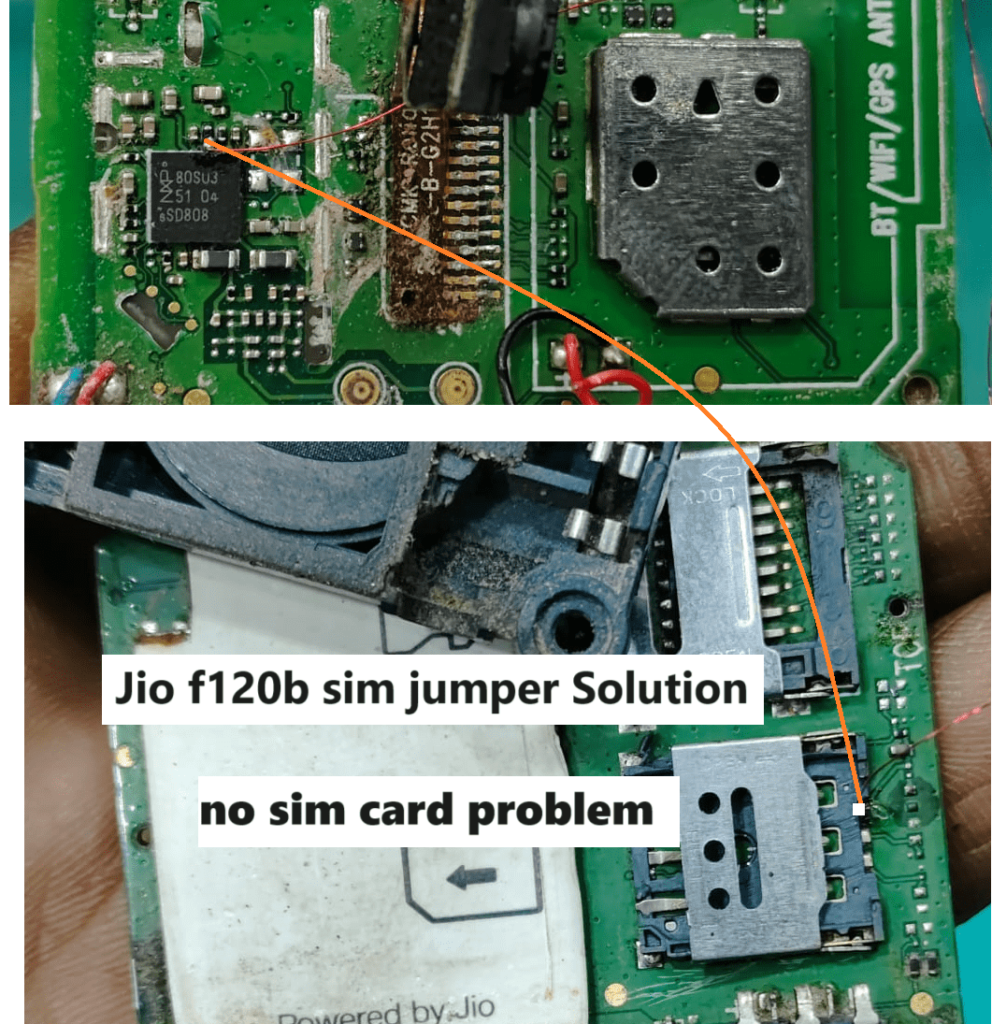
Are you facing the Insert SIM, SIM Card Not Supported, or SIM Not Detected problem on Jio F120B? If your Jio F120B mobile phone is not detecting the SIM card even after inserting it correctly, this guide will help you troubleshoot the problem.
The SIM card problem in Jio F120B may occur due to a dirty SIM connector, damaged SIM contacts, motherboard issues, or a hardware fault in the SIM detection circuit. Before replacing any component, it is important to check the SIM card, SIM slot, and related hardware components carefully.
In this article, we will explain the possible causes of the Jio F120B Insert SIM problem and the basic troubleshooting methods used to identify the fault.
Jio F120B Insert SIM Problem Symptoms
You may experience one or more of the following problems on your Jio F120B mobile phone:
- Insert SIM card error even when the SIM card is inserted.
- SIM card not detected by the mobile phone.
- SIM card not supported message.
- No SIM card notification on the display.
- SIM card detected intermittently.
- Network not available after inserting the SIM card.
Important: “Insert SIM” and “No Service” are different problems. If the phone detects the SIM but cannot connect to a network, the cause may be different from a SIM detection hardware fault.
Common Causes of Jio F120B SIM Card Problems
Before starting the repair process, check the following possible causes.
1. Damaged or Faulty SIM Card
Sometimes the SIM card itself may be damaged or worn out. Test the SIM card in another compatible phone to determine whether it is working correctly.
2. Dirty SIM Connector
Dust, dirt, corrosion, or moisture around the SIM connector may prevent proper electrical contact between the SIM card and the phone.
3. Damaged SIM Connector Pins
The SIM connector pins may become bent, damaged, or disconnected from the motherboard. This can prevent the device from detecting the SIM card.
4. Motherboard Connection Problem
A damaged PCB track, loose connection, or faulty component in the SIM detection circuit can also cause this issue.
5. Software or Configuration Issue
In some cases, a software fault or incorrect device configuration may affect SIM detection. However, if the phone consistently displays “Insert SIM,” the hardware should also be checked.
Jio F120B Insert SIM Problem Solution Method
Follow these troubleshooting steps carefully to identify the cause of the problem.
Step 1: Check the SIM Card
First, switch off the mobile phone and remove the SIM card. Inspect the SIM card for visible damage, dirt, or corrosion.
Clean the SIM card contacts gently with a suitable electronics cleaning method and allow them to dry completely before reinserting it.
If possible, test the SIM card in another compatible phone. You can also test a known-working compatible SIM card in the Jio F120B.
Step 2: Open the Mobile Phone Carefully
If the SIM card is working properly but the Jio F120B still displays an Insert SIM error, the phone may have a hardware-related problem.
Switch off the phone and disconnect the battery before opening the device. Use suitable tools and follow proper ESD precautions to avoid damaging sensitive components.
If you do not have mobile repair experience, it is safer to take the phone to a qualified technician.
Step 3: Clean the Motherboard
Inspect the motherboard and SIM connector area for dust, corrosion, liquid damage, or visible component damage.
If cleaning is necessary, use an appropriate electronics cleaning solution and suitable ESD-safe tools. Do not apply excessive liquid or power the phone while the board is wet.
After cleaning, inspect the SIM connector and surrounding components carefully.
Step 4: Check the SIM Connector Pins
Use a magnifier to inspect all SIM connector pins. Look for bent pins, broken solder joints, corrosion, or pins that are not making proper contact with the SIM card.
A multimeter can be used by a trained technician to check continuity on accessible connections and compare readings with a known-good board or circuit reference.
Safety note: Do not assume that every SIM connector pin should have continuity to ground. Different pins have different functions, and incorrect probing can damage the motherboard.
Step 5: Inspect the SIM Circuit
If the SIM connector appears normal, the next step is to inspect the related SIM circuit on the motherboard.
Depending on the circuit design, a technician may need to examine the SIM supply voltage, ground connection, signal lines, protection components, and relevant PCB tracks.
Use the correct circuit diagram or board reference whenever possible. Do not replace components randomly without confirming the fault.
Step 6: Check for Software-Related Problems
If the hardware appears normal, restart the phone and check whether the issue persists.
If a reliable software update or official repair procedure is available for the exact device variant, follow the appropriate instructions. Back up important data before performing any reset or firmware operation.
Avoid flashing an unverified firmware file, as an incorrect file can cause additional problems.
Step 7: Replace the Faulty Component if Necessary
If testing confirms that the SIM connector or another component is damaged, it may need to be repaired or replaced.
After completing the repair, reinstall the battery, assemble the phone correctly, and test the device with a known-working compatible SIM card.
Jio F120B SIM Jumper Solution
The image included in this article shows a Jio F120B SIM jumper solution reference.
A jumper repair may be required when a PCB track or connection is confirmed to be damaged. However, the correct jumper points depend on the actual board layout and circuit design.
Before applying a jumper:
- Inspect the damaged track carefully.
- Confirm the connection using a reliable circuit reference.
- Check for short circuits before powering on the phone.
- Use an appropriate insulated wire and professional soldering tools.
- Avoid connecting unknown points or guessing jumper locations.
A jumper should only be installed after identifying the faulty connection. An incorrect jumper can damage the SIM circuit or other motherboard components.
Final Words
The Jio F120B Insert SIM problem can be caused by a faulty SIM card, dirty SIM connector, damaged connector pins, motherboard connection issues, or a software-related fault.
Start by testing the SIM card and inspecting the connector. If the problem remains, check the motherboard and SIM circuit using appropriate tools and a reliable circuit reference.
Always identify the actual fault before replacing components or applying a jumper. Careful diagnosis can help prevent further motherboard damage and make the repair process more effective.
Frequently Asked Questions (FAQ)
1. Why does my Jio F120B show Insert SIM?
This error may occur because the SIM card is damaged, the connector is dirty, the SIM pins are damaged, or the motherboard has a SIM detection circuit fault.
2. Can a damaged SIM connector cause the Insert SIM problem?
Yes. Bent pins, broken solder joints, or poor contact between the SIM card and connector can prevent the phone from detecting the SIM.
3. How can I check the Jio F120B SIM connector?
Inspect the connector visually and use a multimeter to test appropriate accessible connections. A qualified technician should perform board-level testing with a suitable circuit reference.
4. Is a SIM jumper solution always required?
No. A jumper is only appropriate when a damaged track or connection has been identified. Many SIM problems can be caused by the SIM card itself, a dirty connector, or another component.
5. What should I do if the SIM card works in another phone?
If the SIM works in another compatible phone, test another working SIM in the Jio F120B. If the problem continues, inspect the SIM connector and related hardware.
6. Can software cause a SIM detection problem?
Software issues can sometimes affect SIM detection, but a persistent Insert SIM error may also indicate a hardware fault. Check both possibilities before deciding on a repair.
Jio F120B Insert SIM Problem Jumper Solution Image
Below, I have provided the Jio F120B SIM jumper solution image for reference. If your Jio F120B mobile phone shows an “Insert SIM” or “SIM Card Not Supported” error, you can use the image below as a visual reference while diagnosing the SIM detection circuit.
Carefully inspect the SIM connector area and compare the jumper points shown in the image with your phone’s motherboard. Make sure the board layout and connections match before attempting any jumper repair.
Note: This image is provided for repair reference only. Always verify the correct jumper points before soldering, as incorrect connections may damage the motherboard or SIM circuit.
Jio F120B SIM Jumper Diagram
Check the jumper solution image below for reference.
–